> ## Content Index
> Fetch the complete content index at: https://bepublish.com/llms.txt
> Use this file to discover other available public pages before exploring further.
# Simple way to create a table of contents for Ghost articles
- URL: https://bepublish.com/create-a-table-of-contents-for-ghost/
- Published: 2023-05-28T02:47:49.000Z
- Updated: 2026-08-11T14:38:10.000Z
- Description: This tutorial shows you how to make a detailed table of contents for long articles in Ghost without changing the theme.
- Author: Cuong Thach
- Tags: Tutorials, #multilingual
With most articles exceeding 2,000 words and many headings, readers would find it challenging to understand and enjoy them without a table of contents.
If you have a long-term article, readers are more likely to read it in pieces than to read it all at once.
It is always a good idea to provide readers with a table of contents, which can serve as a mini menu to help them navigate the content and ensure the reading circuit is not broken.
The following instructions will show you how to create an automatic table of contents for Ghost and manually insert it anywhere (including the sidebar) in your post.
This is especially useful for [Ghost (Pro) Starter](https://ghost.org/pricing/?via=cuong76&ref=bepublish.com) users who cannot modify their themes. (**Check out the last section of this article**)
## Create an automatic table of contents with TOCBOT
[TOCBOT](https://tscanlin.github.io/tocbot/?ref=bepublish.com) (table of content bot) is an external script that helps you automatically create a table of contents based on the heading heading in the article.
The installation method is as follows:
### Step#1: TOCBOT script installation
```html
```
place code at Post header {{ghost\_head}}
```html
```
place code at Post footer {{ghost\_foot}}
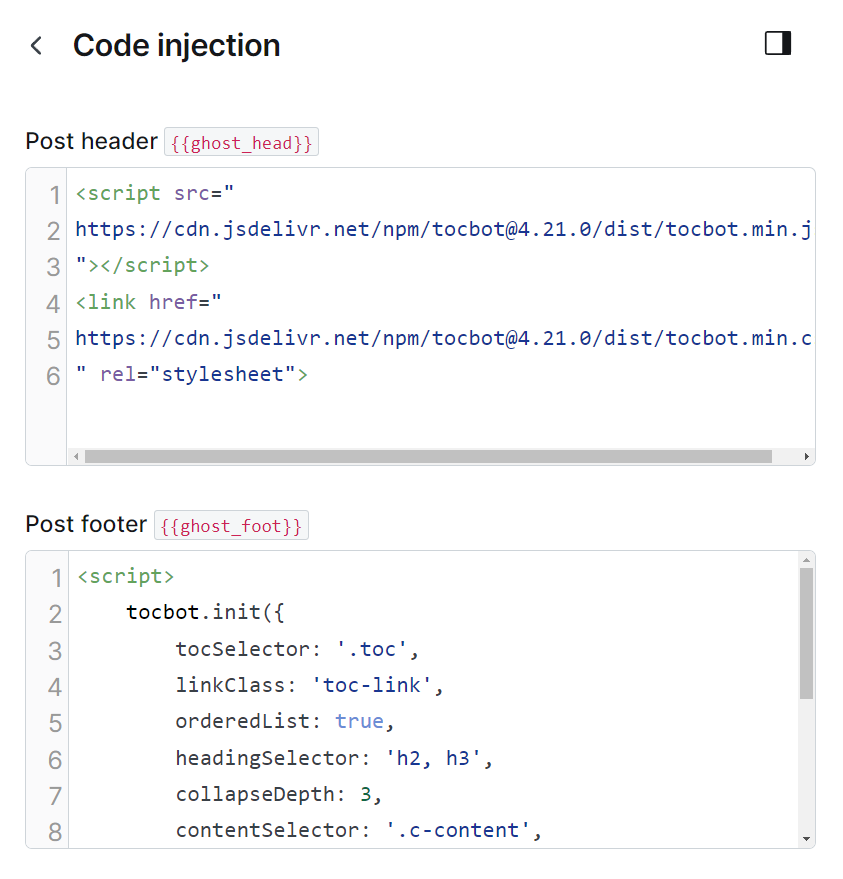
Code injection
💡
This code must be injected as above tutorial to prevent TOCBOT not working
### Step#2: Place the styled table of contents anywhere you like
I need to use **HTML card** to insert the code below
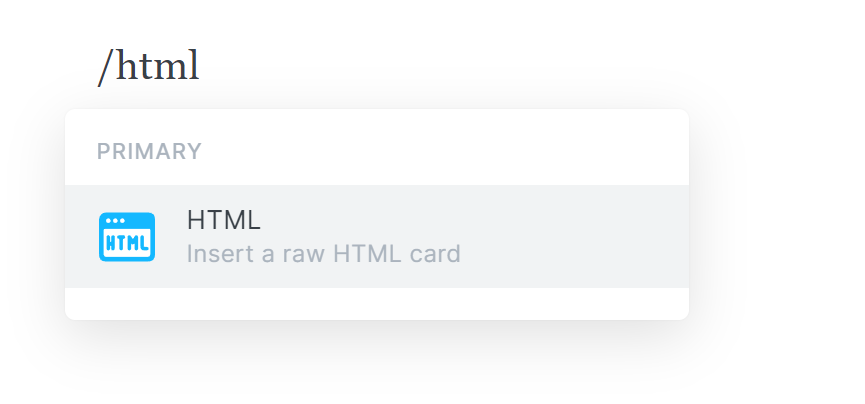
Use HTML card to insert the table of content everywhere you like
```html
```
Should be saved as snippet TOC to use

Create Snippet TOC to reuse
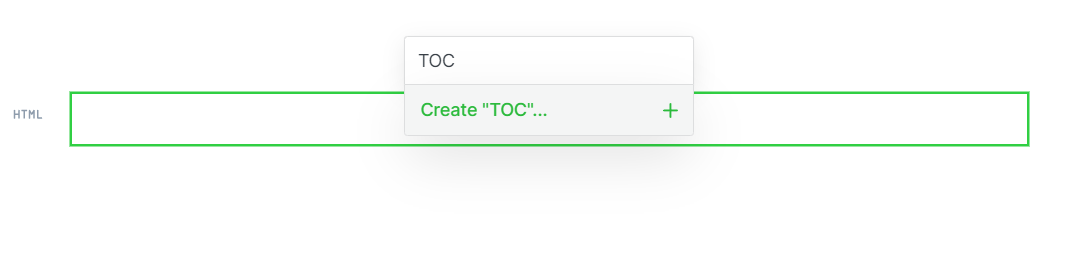
Name Snippet TOC to remember for recall
### For example, I placed a table of contents right below this paragraph
You should insert it into the **Post Head** instead of the **Ghost Head** because you should only insert the table of contents into long posts. Short articles are not recommended (As you can see, this one is not advisable 😅). Try to make it as easy on the eyes and convenience as possible for the reader.
Remember **to save to Content Snipet** as Table of Contents or TOC to reuse for future posts.
## Note when inserting the table of contents automatically using TOCBOT
After you have installed TOCBOT, add the following HTML card to any post you want.
An extremely important note is that each theme will not be the same and will have different content classes. `contentSelector: '.c-content'`
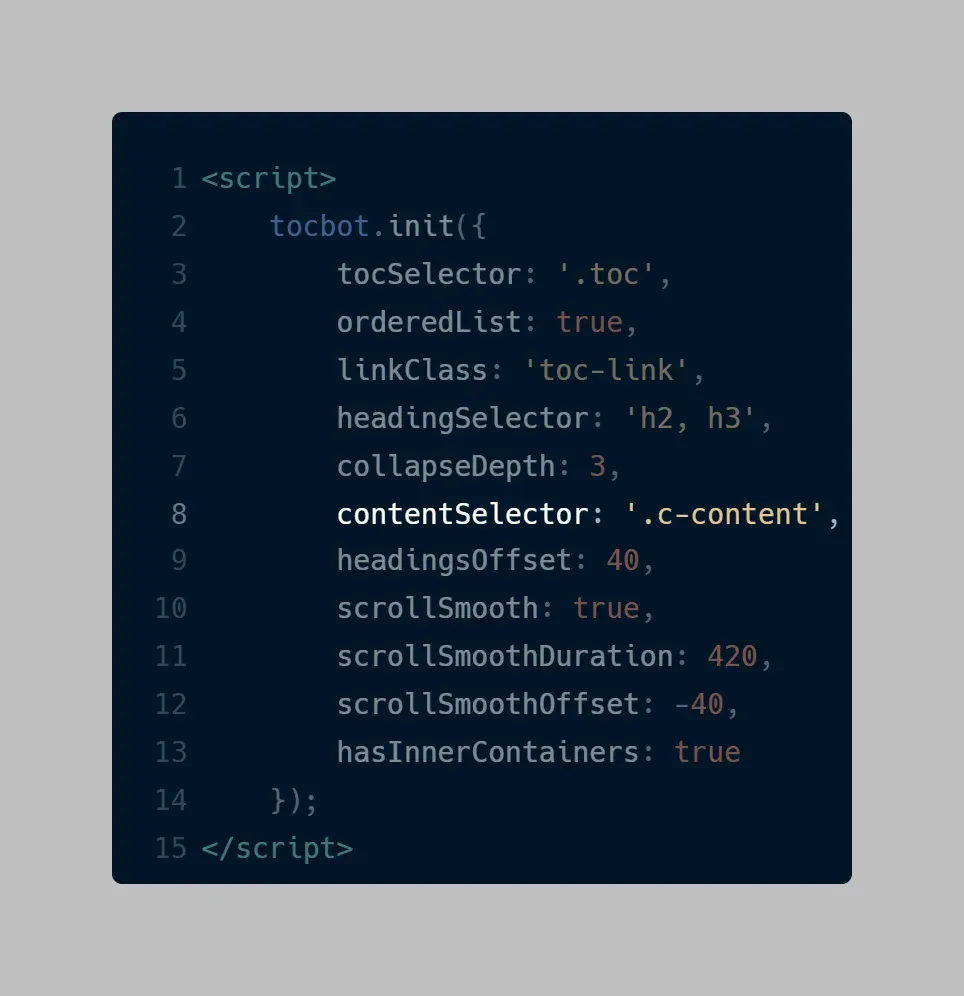
`ContentSelector` based on theme
For example, all [Aspire](https://gumroad.com/a/566326387?ref=ghostfam.com) theme themes will have a class `.c-content`, while [Fueko themes](https://1.envato.market/rAyrQ?ref=ghostfam.com) will have a class `.post-content`, [Casper theme](https://github.com/TryGhost/Casper?ref=bepublish.com) will also have a class `.gh-content`, etc
If you have the wrong class, the table of contents will not be created automatically. Each theme will have a Class Name depending on the developer's preferences.
If you have problems calling the right class name or error style when using a certain theme, please let me know at comment below.
## For ghost (Pro) user using Casper theme
💡
The below code only works with the Casper theme.
Thanks to **Ben** for pointing out that the code didn't work with Casper theme, so I rewrote it and tested it myself.
With this dedicated code, you can automatically inject the ToC for Casper theme with two simple copy&paste on Site Header and Site Footer:
```html
```
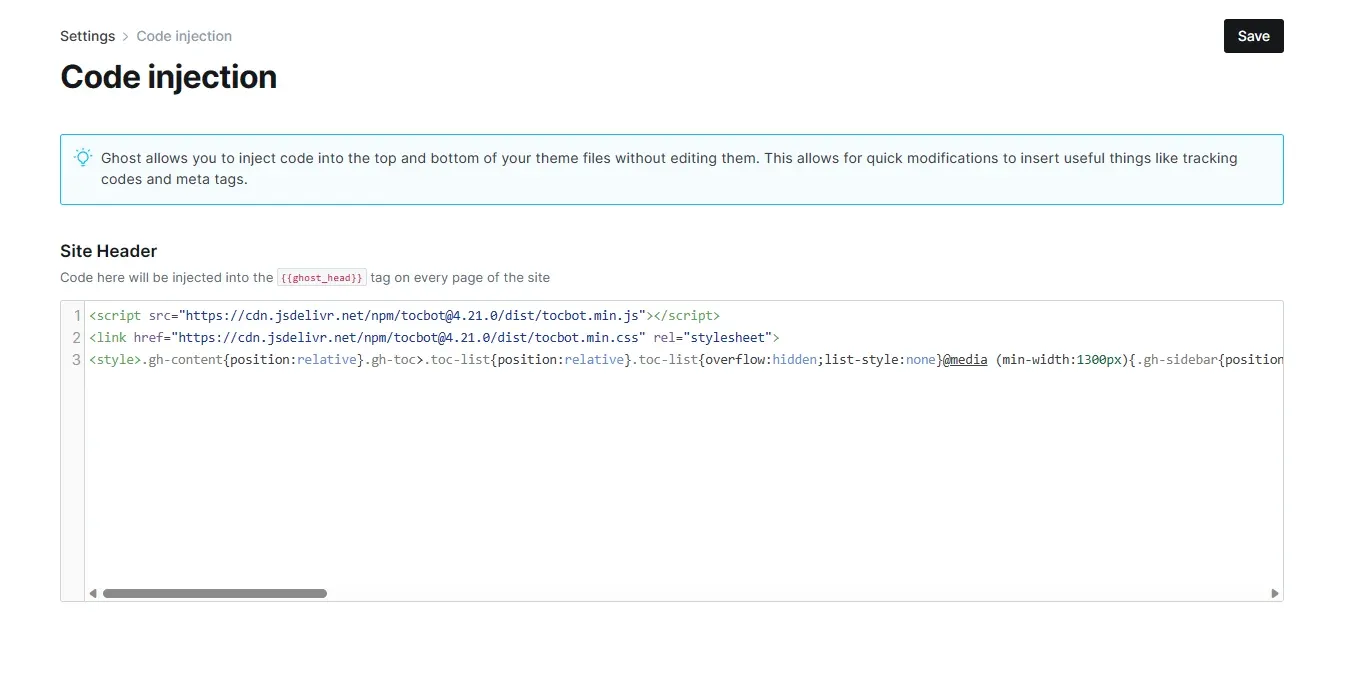
Site Header
```html
```
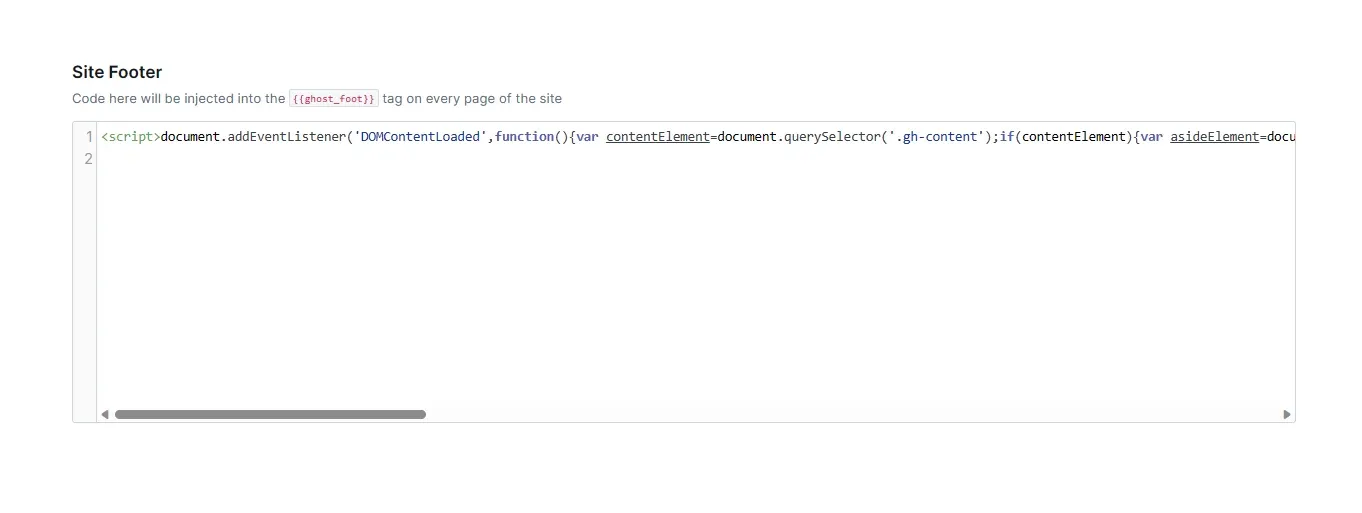
Site Footer
The final result:
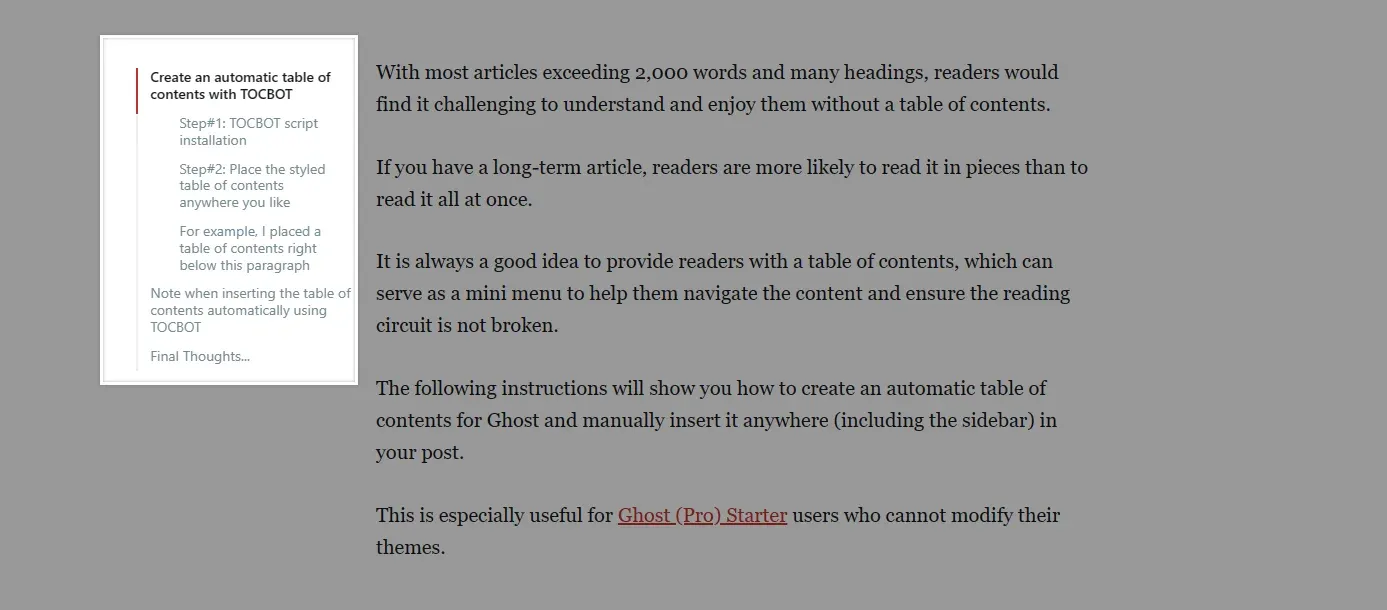
ToC on Casper theme
## Final Thoughts...
A theme should not be inserted directly into articles (except in the case of a custom post template), but should only be manually inserted as a guide for the best results in terms of site speed and reader experience.
In a nutshell, you will do the following when adding an automatic table of contents to an article:
1. Insert TOCBOT into the post head.
2. Insert the Content Snipet card saved above in any location you want of the post.